
In this part of our Selenium WebDriver tutorial series, you will learn how to download the latest version of Selenium WebDriver and JUnit JAR files. These JAR files are required to configure Selenium with Java and start writing your first automation scripts.
Before we begin the download process, let us quickly understand why we need Selenium and JUnit JAR files in the first place.

Why do we need to download Selenium WebDriver jar files?
When you automate test cases using Selenium WebDriver, you need to perform various actions on a web browser. These actions include opening a URL, clicking buttons or links, entering text into input fields, selecting values from drop-down menus, and validating page elements.
All these browser interactions are made possible through Selenium’s Java libraries, which are packaged as JAR files. These JAR files contain the classes and methods required to communicate with the browser and control it programmatically.
Without adding these Selenium WebDriver JAR files to your Java project, you will not be able to write or execute automation scripts.
Why do we need JUnit jar file with Selenium?
JUnit is a popular unit testing framework for Java. It is not a part of Selenium, but it works very well alongside Selenium when writing automation tests.
While Selenium helps you interact with the browser, JUnit provides a structured way to design and execute your test cases. It allows you to organize tests using annotations, create assertions to validate expected results, and generate clear test execution reports.
Although Selenium and JUnit can be used independently, combining them makes your automation framework more structured and maintainable. You will understand this better when we start writing actual Selenium test scripts in the upcoming tutorials. In this tutorial, we will be using JUnit 5, which is the latest major version of JUnit for Java projects.
Should You Download JAR Files or Use Maven?
You might wonder why we are manually downloading Selenium and JUnit JAR files instead of using Maven to manage dependencies. Maven is a powerful build and dependency management tool that automatically downloads the required libraries and keeps them updated. In real-world automation projects, Maven is widely used because it simplifies dependency management and project structure.
However, for beginners, directly downloading and adding the JAR files helps in understanding how Selenium is actually configured in a Java project. It gives you clarity on what libraries are required and how they are connected to your automation code.
Once you are comfortable with the basic setup and have written a few Selenium scripts, you can easily convert your project into a Maven project. This makes troubleshooting much easier because you will clearly know whether an issue is related to Selenium setup or Maven configuration.
Do not worry – we will cover Maven setup in detail later in this Selenium tutorial series.
How to Download Selenium WebDriver Java JAR Files (Latest Version)
Follow the steps given below to download the latest version of Selenium WebDriver jar files from selenium official website –
1. Open Selenium download page using this link – https://www.selenium.dev/downloads/
2. Scroll down a bit on the page. You will see a section called Selenium Clients & WebDriver Language Bindings. Here you will see download links next to different languages such as Java, C#, Ruby etc. Since we are using Selenium with Java in this tutorial, you will need to download Java specific drivers. To do so, click on the link next to “Stable:” text
As of this writing, Selenium 4.40.0 is the current stable major version. Even if you see a newer version on the website, go ahead and download it – the download and setup steps remain the same.

3. Selenium-java-4.40.0.jar would start downloading. The file size is around 36 MB
4. Once downloaded, extract the ZIP file using any extraction tool of your choice

5. Open the extracted folder. You will see:
- Several Selenium JAR files in the main folder
- Additional files such as CHANGELOG, LICENSE, NOTICE etc
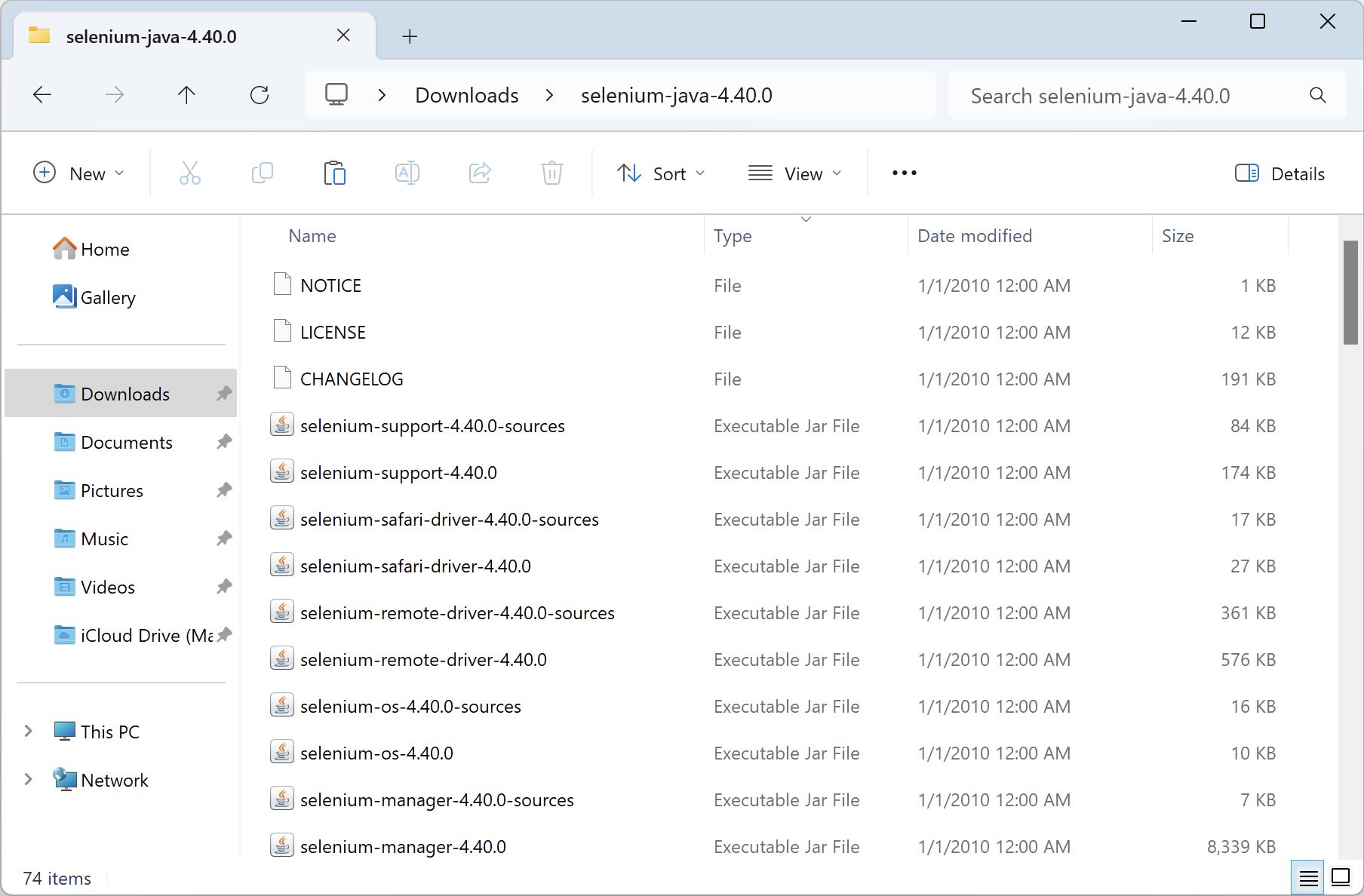
To work with selenium, you would need to use all these jar files in your Eclipse or IntelliJ IDEA project. With this, we have completed the download process of the latest version of Selenium WebDriver.
Do You Need to Download ChromeDriver Separately?
Starting with Selenium 4.6.0, Selenium includes Selenium Manager, a built-in tool that automatically detects and manages browser drivers such as ChromeDriver and GeckoDriver. This means that for Selenium versions 4.6.0 or later, you typically do not need to manually download individual driver executables – Selenium Manager handles this for you.
We will cover Selenium Manager in detail in a later article.
JUnit 5 vs JUnit 6 – Which Version Should You Use for Selenium?
In this tutorial series, we will use JUnit 5 (JUnit Jupiter) for the following reasons:
- Widely adopted in Selenium automation projects – Most of the Selenium + Java frameworks currently use JUnit 5
- Industry standard and stable – JUnit 5 is mature, well-documented, and widely supported
- Better compatibility with existing tutorials and tools – Most automation examples, CI integrations, and online resources reference JUnit 5
- Higher community support – The majority of GitHub projects and StackOverflow discussions still use JUnit 5
Although newer versions of JUnit may be available, as of now JUnit 5 remains the most widely documented and commonly used version for Selenium automation projects. So, for consistency and stability, we will continue with JUnit 5 in this tutorial series.
Download junit jar file
Unlike Selenium WebDriver, which includes multiple JAR files, you only need the required JUnit 5 library to write and structure your test cases. Follow the steps below to download the latest JUnit 5 JAR file –
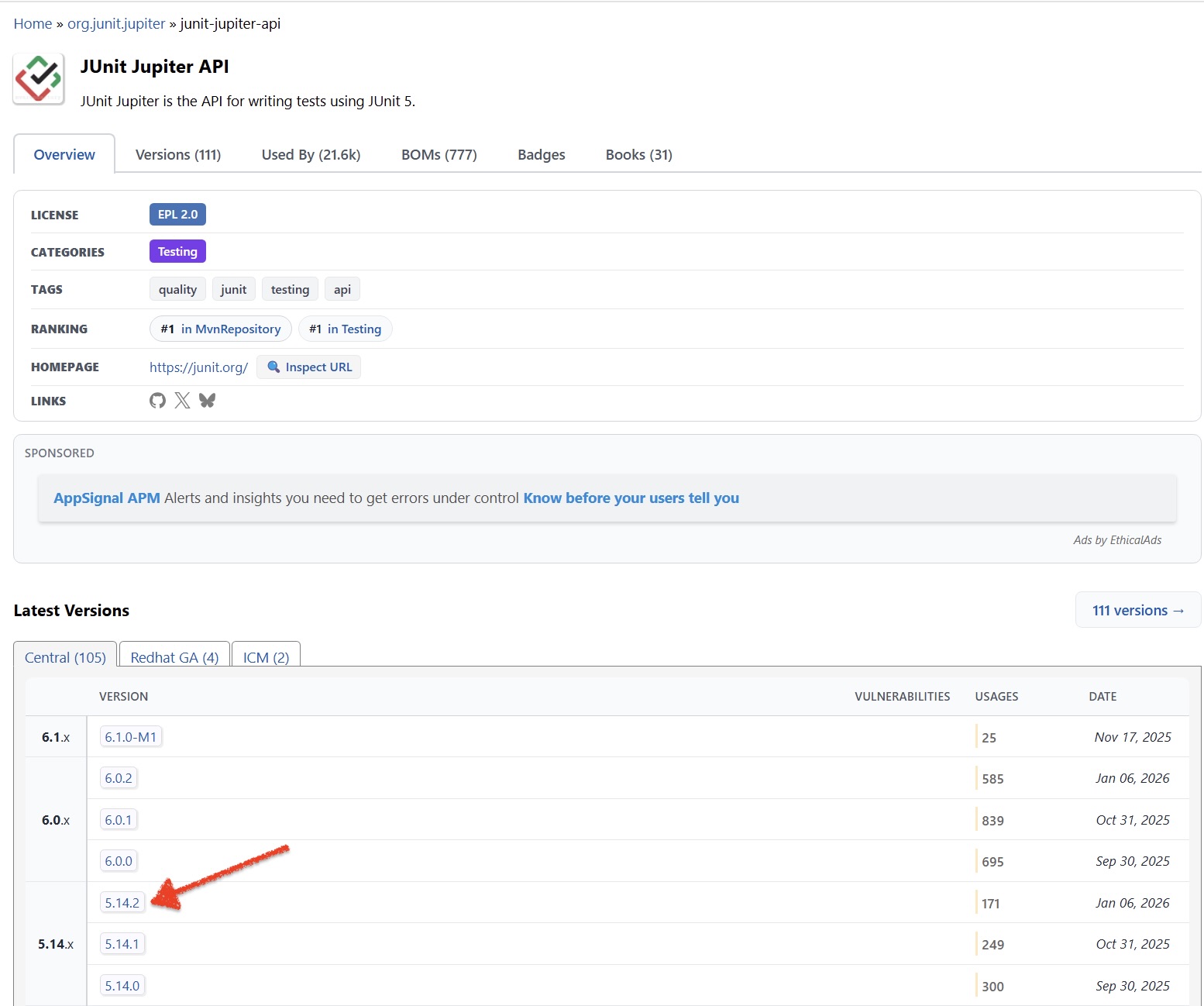
1. Open JUnit maven repository using this link – https://mvnrepository.com/artifact/org.junit.jupiter/junit-jupiter-api
2. Click on the link for the latest stable version (5.14.2 as per this image)
3. Click on the jar link to download the jar file
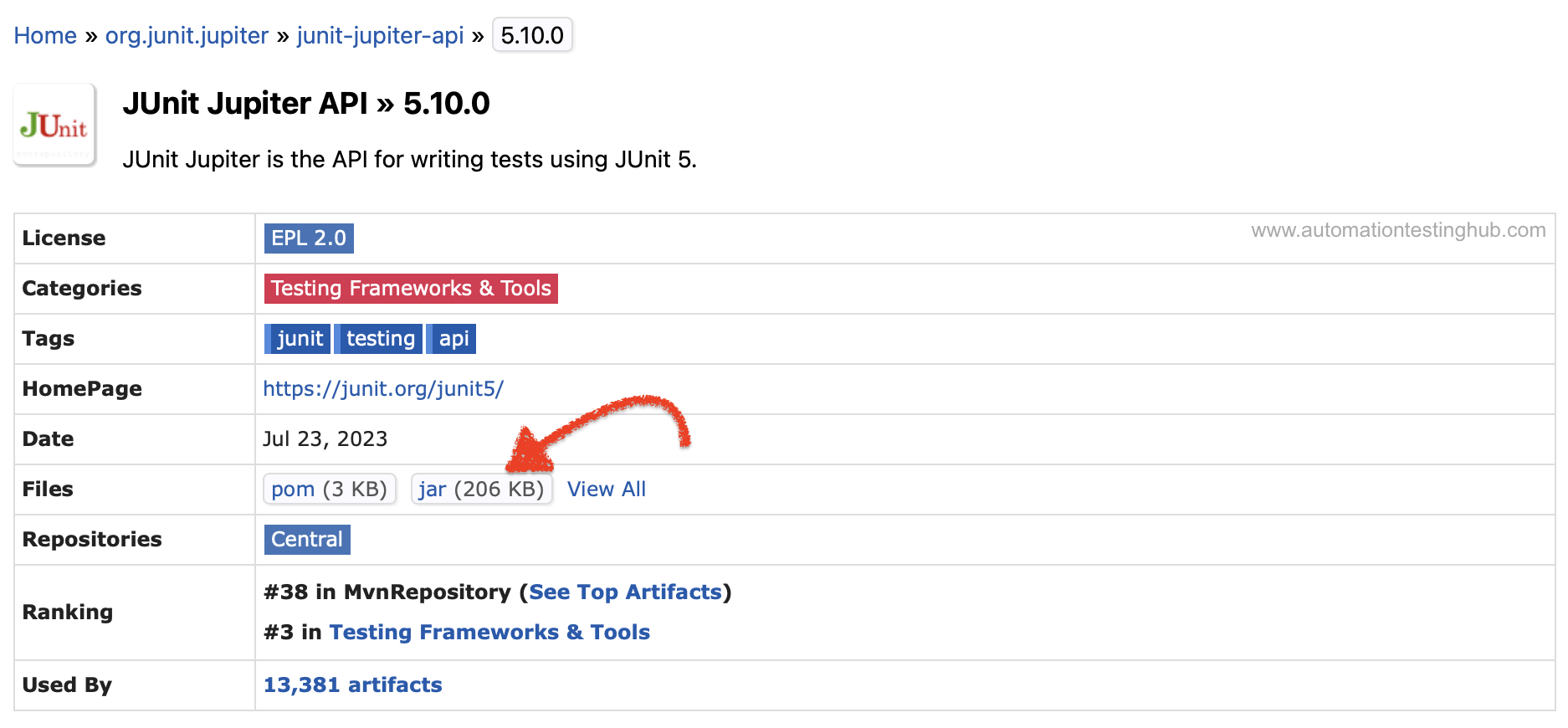
4. Save the JUnit jar file on your machine
Even if you see newer minor versions in the future, the download steps will remain the same.
With this, you have successfully downloaded both the Selenium WebDriver and JUnit JAR files required for your setup.
In the next tutorial, we will add these JAR files to a Java project in Eclipse and write our first Selenium test script.