
Welcome! This article is part of our step-by-step “Appium Tutorial for Beginners” series. Today, you’ll learn how to download and install Appium Inspector on Windows & Mac – complete with screenshots and setup instructions.
🔍 At a glance:
- What Appium Inspector is and its different formats
- How to install Appium Inspector on Windows and Mac
- Common troubleshooting tips
- A quick look at Appium Inspector for Web
What is Appium Inspector?
Appium Inspector is basically a GUI assistant tool from Appium. It allows you to inspect UI elements on mobile apps, view their attributes (resource-id, XPath, class name etc) and includes various features for interacting with the app.
Appium Inspector is available in 3 different formats –
- Standalone Desktop application for Windows, Mac and Linux
- Web Application
- Appium Server Plugin
In this article, we will focus mainly on the 1st format – i.e., Downloading and Installing Appium Desktop Inspector for Windows and Mac. Towards the end of the article, we will briefly cover Appium Inspector Online, or Appium Inspector Web as well.
Let us first get to the steps using which you can download and install Appium Inspector. Later in our Appium tutorial series, we will have more detailed articles on how to use this tool.
Download Appium Inspector for Windows
Follow the steps given below to download the latest version of Appium Inspector for Windows & Mac –
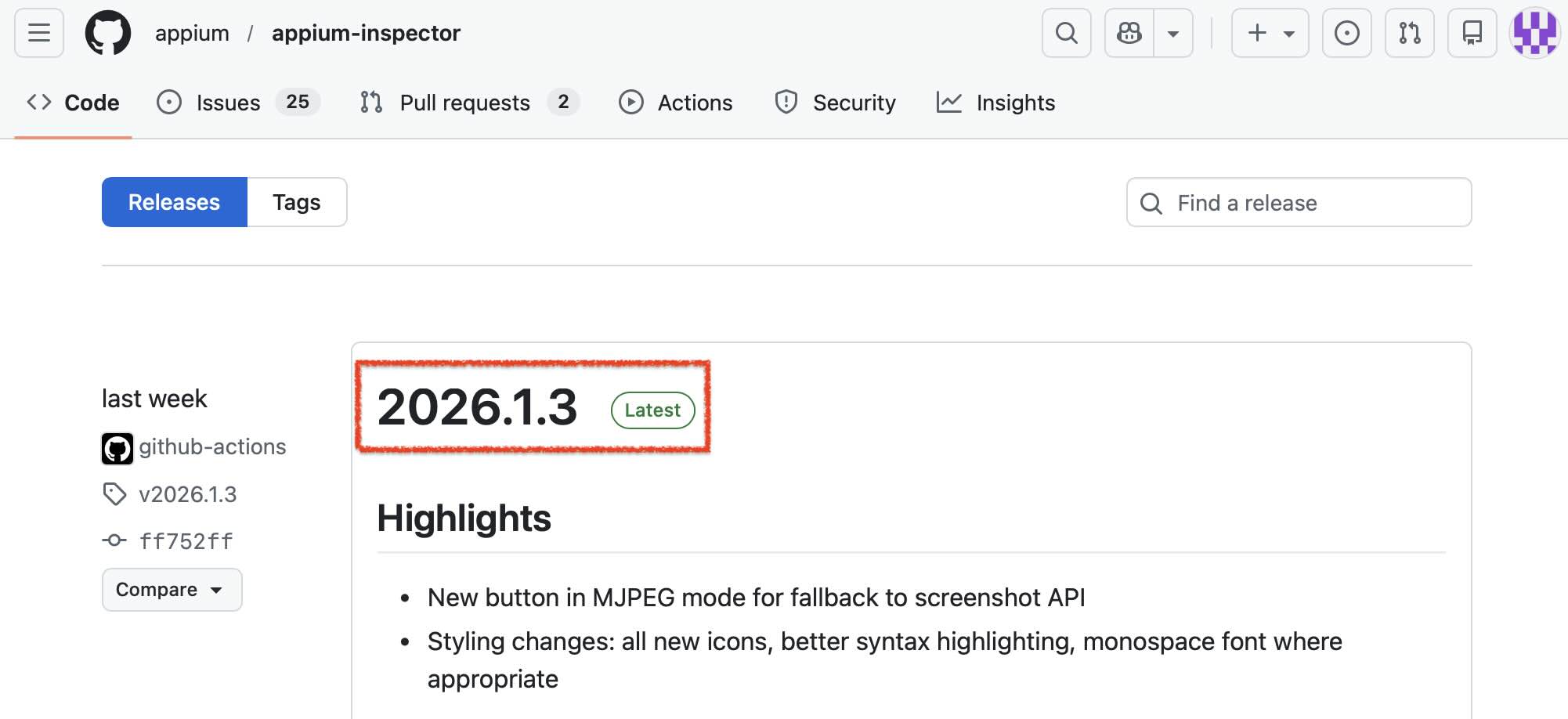
1. Open Github Appium Inspector Releases page – https://github.com/appium/appium-inspector/releases
On this Github page, you will be able to see the latest release details (as on 2nd Feb 2026, the latest release is 2026.1.3)
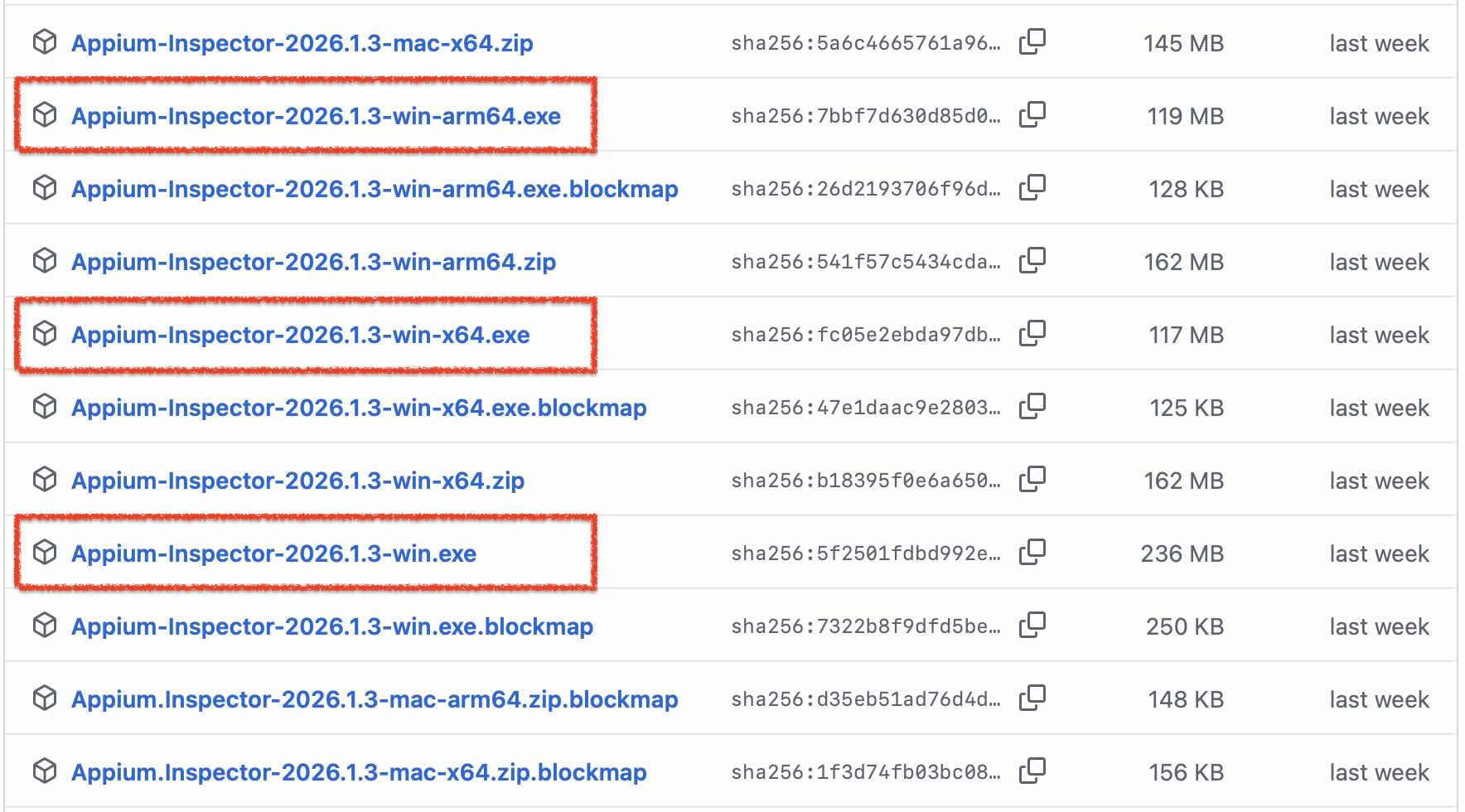
2. Go to Assets section, and then click on “Show all assets” at the bottom of table.
3. To download Appium Inspector for Windows, click on – win, win-x64 or win-arm64 .exe file based on whether your machine is 32-bit or 64-bit
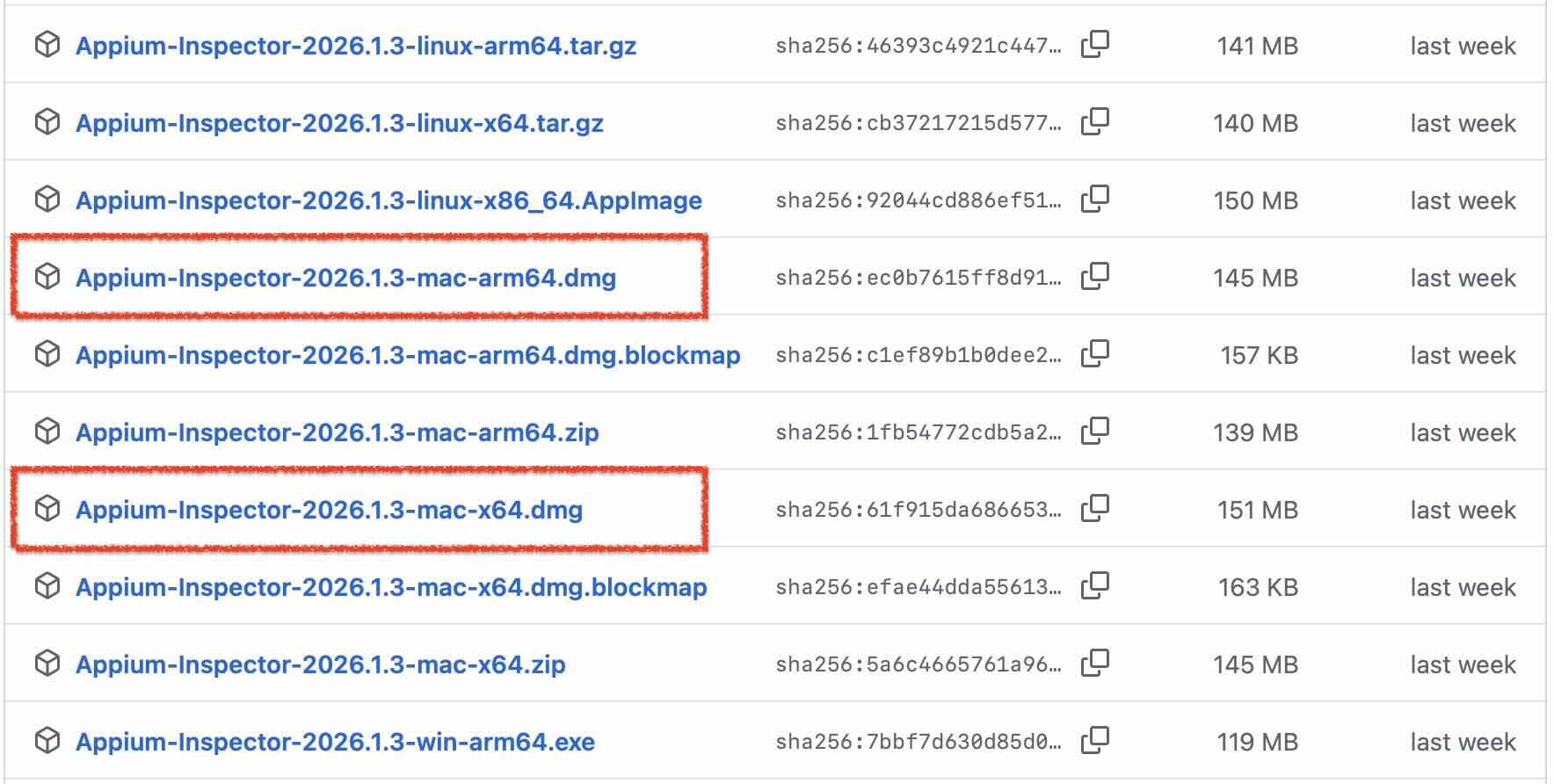
4. To download Appium Inspector for Mac, click on mac-x64.dmg if you have a Mac with Intel chip. If you have a Mac with Apple chip (like M1, M2 etc), then download mac-arm64.dmg
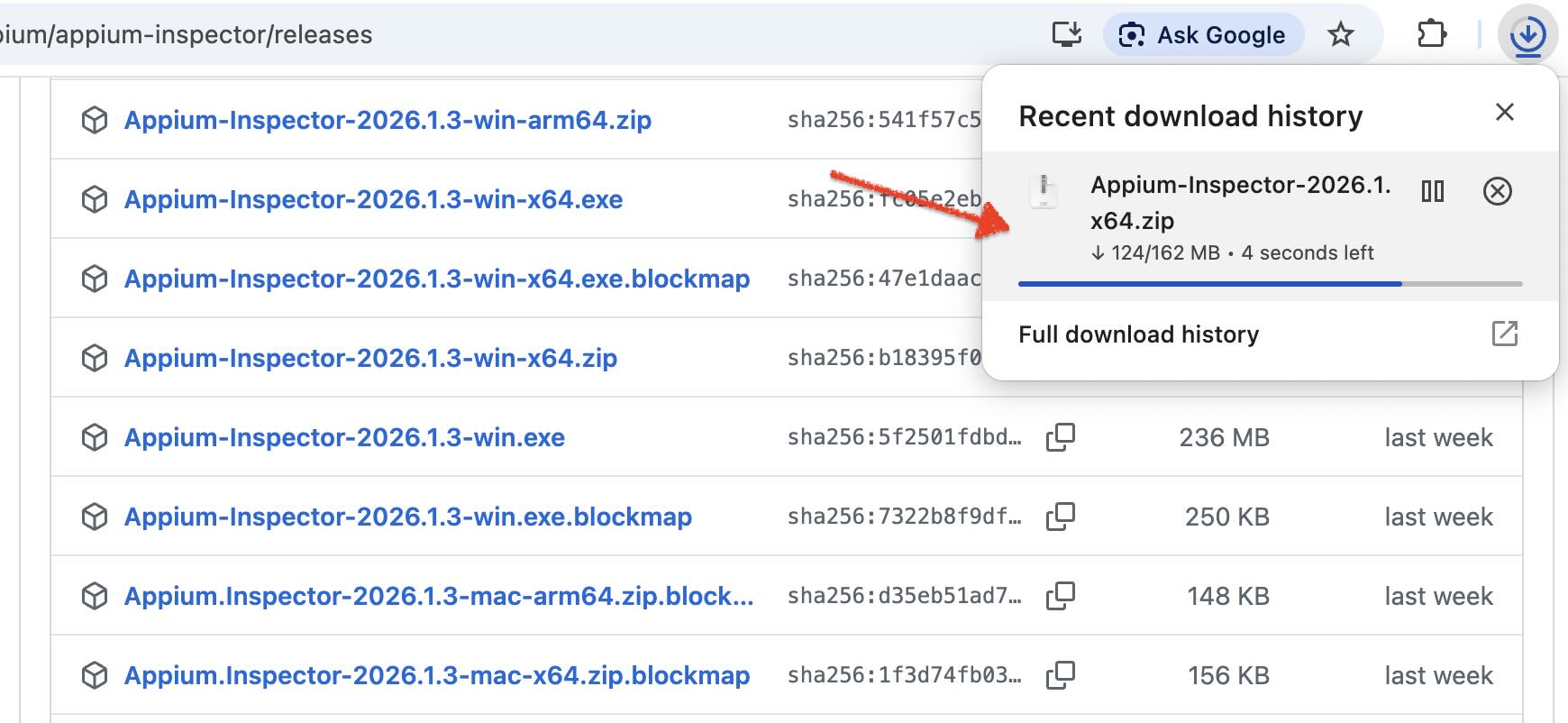
Click on the correct .exe or .dmg link, to download Appium Inspector on your machine (image below shows Appium Inspector download for windows)
Install Appium Inspector on Windows
Follow the steps given below to install Appium Inspector on your machine –
1. Open the folder location where you have downloaded the inspector tool and double click on the exe to start the installation process
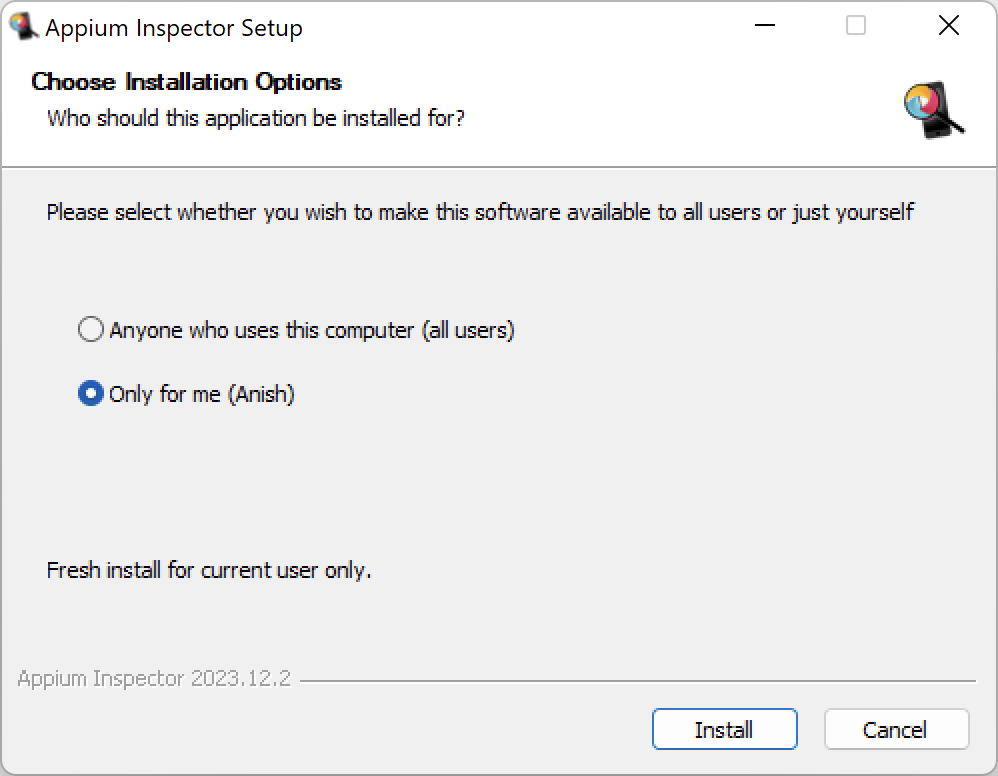
2. Appium will first ask you Installation Options. Leave the already selected option as it is and then click on Install button
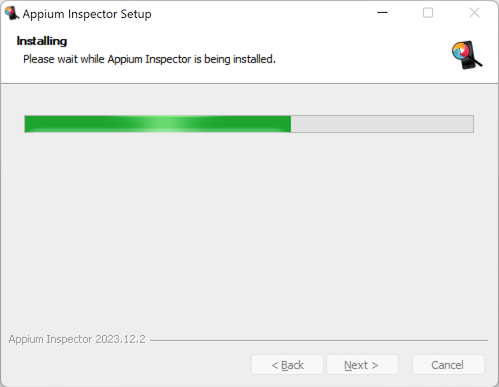
3. Once the installation process starts, you will see the Appium Setup window as displayed below
4. When the installation is completed, you will see the installation completed screen as shown below
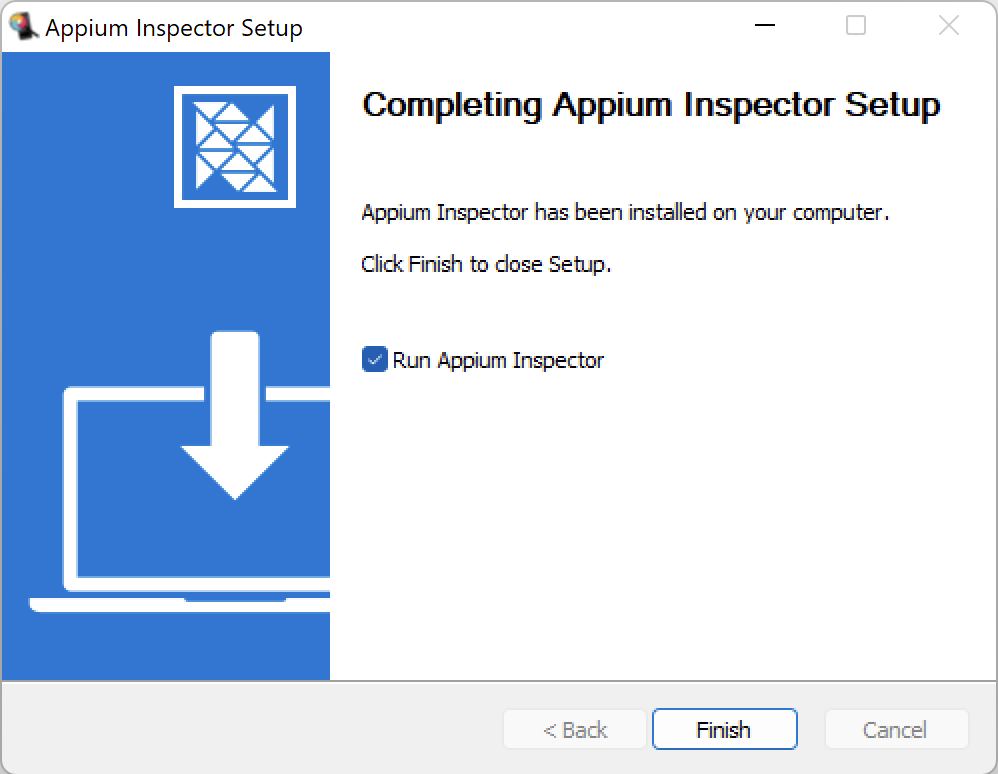
5. Now, leave the Run Appium Inspector option checked and then click on Finish button. Appium GUI window would open and it would look like this
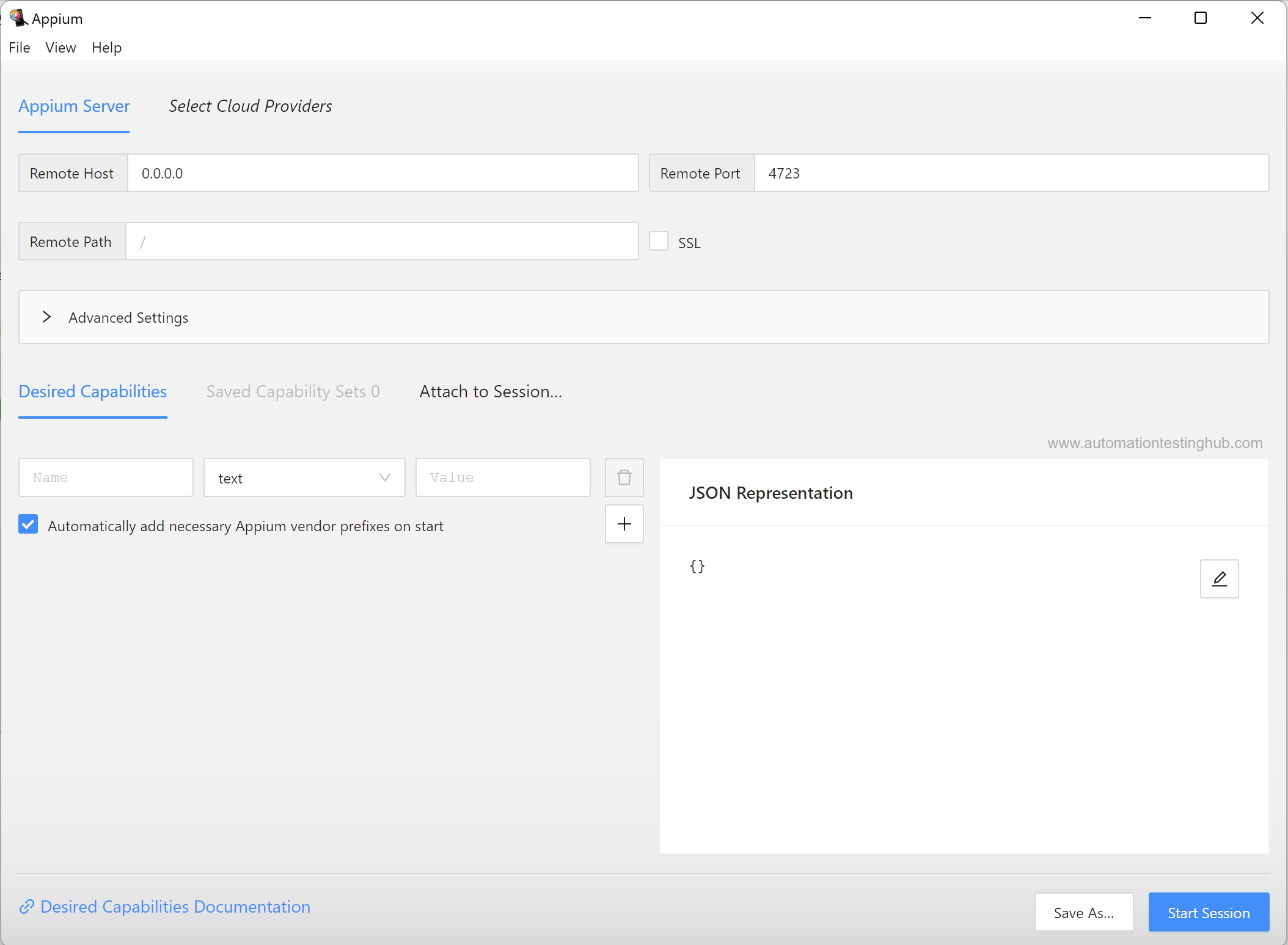
With this, you have finished the download and installation process of Appium GUI Inspector tool
Install Appium Inspector on MacOS
1. Open the Downloads folder and double click on the .dmg file.
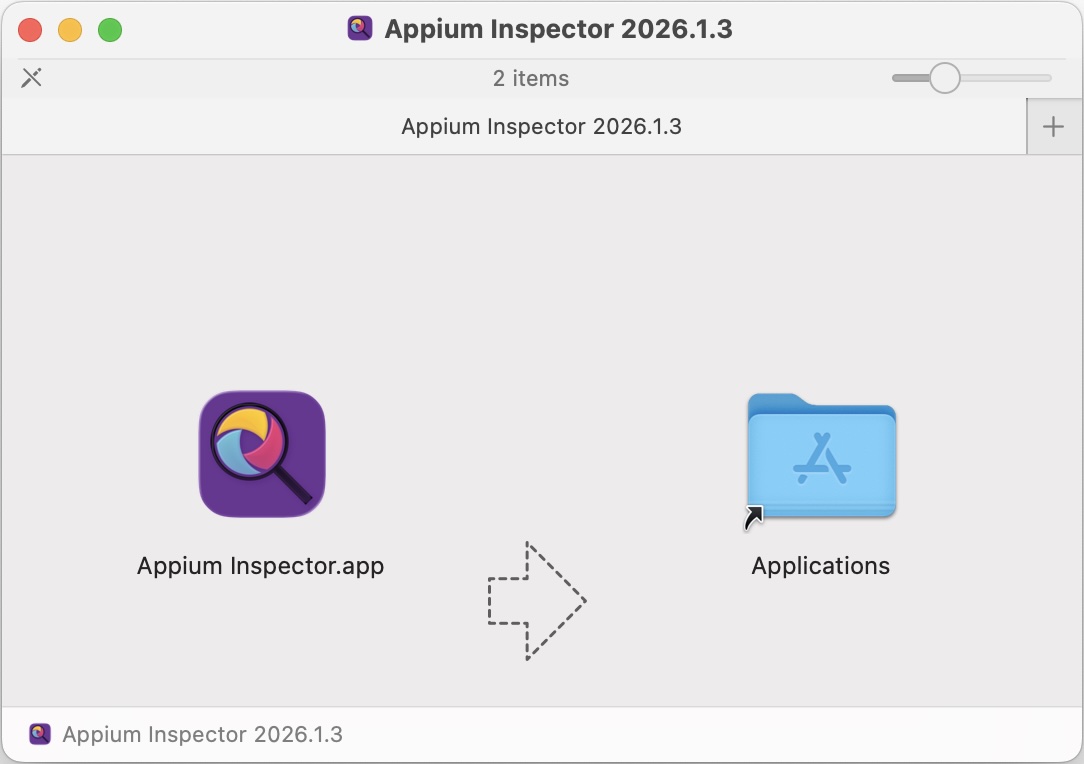
2. Drag Appium Inspector.app to Applications folder. Appium Inspector will get installed on your Mac
3. Go to Applications and double click on Appium Inspector app to open it. This would open Appium Inspector for MacOS on your machine
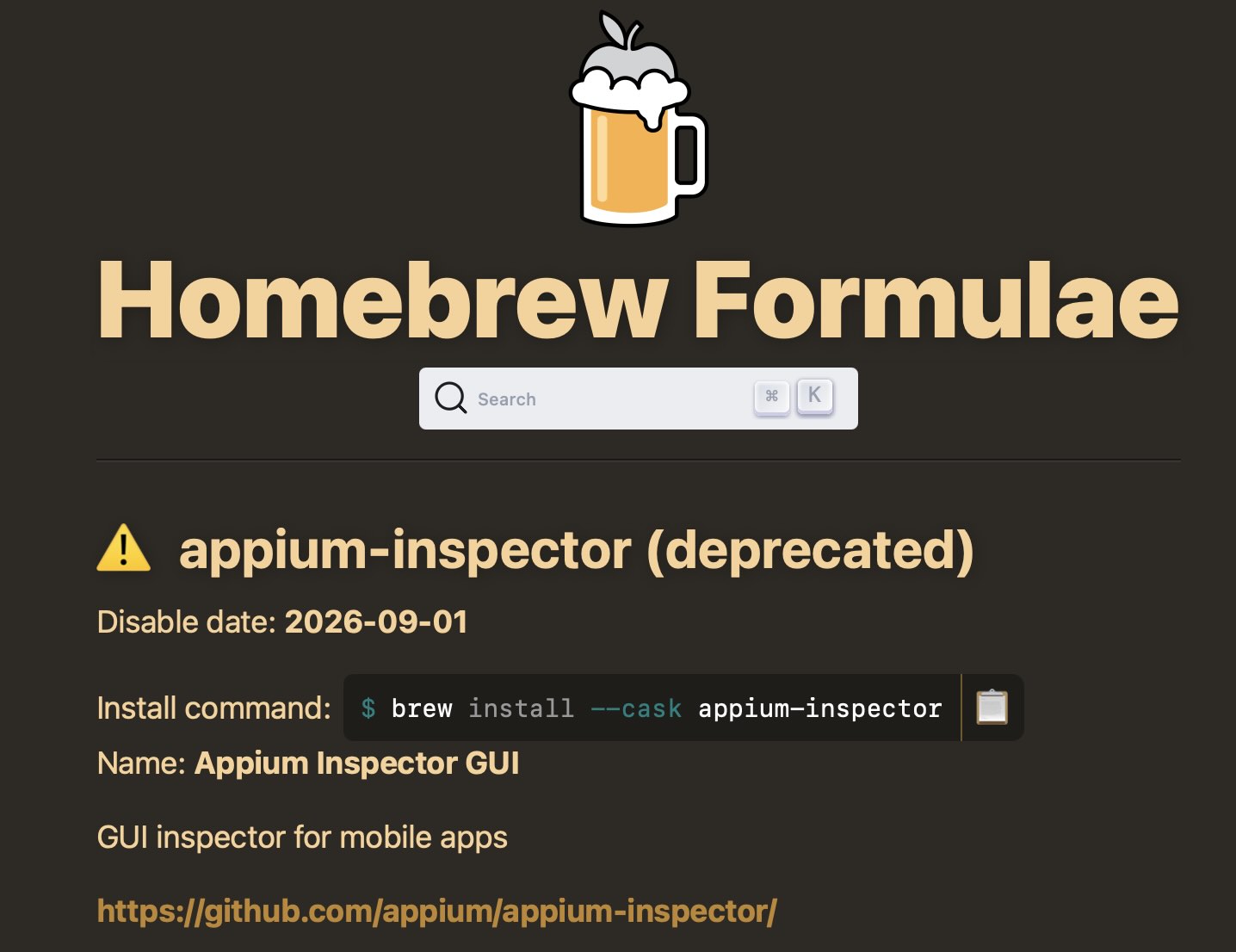
brew install appium inspector (Deprecated Method)
f you’re using macOS, you might come across another commonly mentioned way to install Appium Inspector using Homebrew:
brew install --cask appium-inspector
While this method was popular in the past, it is no longer recommended.
According to the Homebrew documentation, the brew install –cask appium-inspector command has been deprecated and is scheduled to be disabled on September 1st, 2026.
Why is the Homebrew method deprecated?
The Homebrew-based installation of Appium Inspector is being phased out for a few key reasons:
- The Homebrew package is community-maintained and not officially supported by the Appium team
- The app distributed via Homebrew is not notarized by Apple, which triggers macOS security warnings
- On newer macOS versions, this leads to Gatekeeper blocks, extra prompts, and unreliable launches
- Homebrew releases can lag behind official versions, causing update and compatibility issues
Because of these limitations, installing Appium Inspector via Homebrew often creates more problems than it solves – especially for beginners.
What is the recommended way to install Appium Inspector?
The official and recommended method is to download the standalone Appium Inspector desktop application directly from the Appium Inspector GitHub Releases page.
This approach:
- Is maintained by the Appium team
- Provides the latest stable releases
- Works reliably on both Intel and Apple Silicon Macs
- Avoids Homebrew-related deprecation and security issues
This installation method has already been covered step by step earlier in this article.
Apple could not verify “Appium Inspector.app”
While trying to open Appium Inspector app on Mac, you might run into this issue where Apple would block opening the app and you get the following popup message on screen –
“Appium Inspector.app” Not Opened
Apple could not verify “Appium Inspector.app” is free of malware that may harm your Mac or compromise your privacy.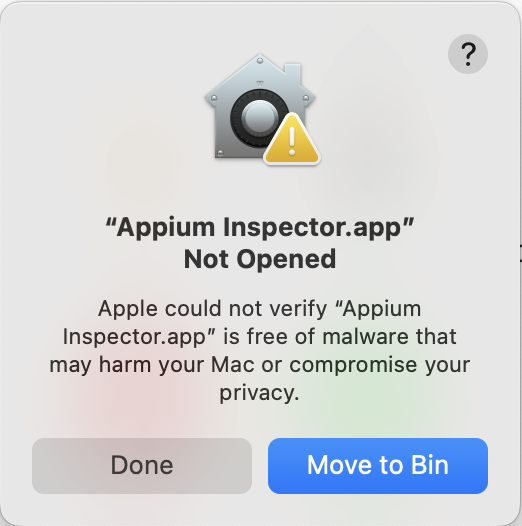
This error indicates that macOS’s Gatekeeper security feature has blocked Appium Inspector because Apple thinks it was downloaded from an unverified source and Apple cannot confirm its integrity. This is a common occurrence with applications not distributed through the Mac App Store or from developers who haven’t registered with Apple’s Developer Program and notarized their apps.
Follow these steps to bypass Gatekeeper restriction –
1. Click on Done on the warning message to close it
2. Open System Settings and go to Privacy & Security section
3. Scroll down to Security section. You will see a message which indicates that “Appium Inspector” was blocked. Click the Open Anyway button next to this message
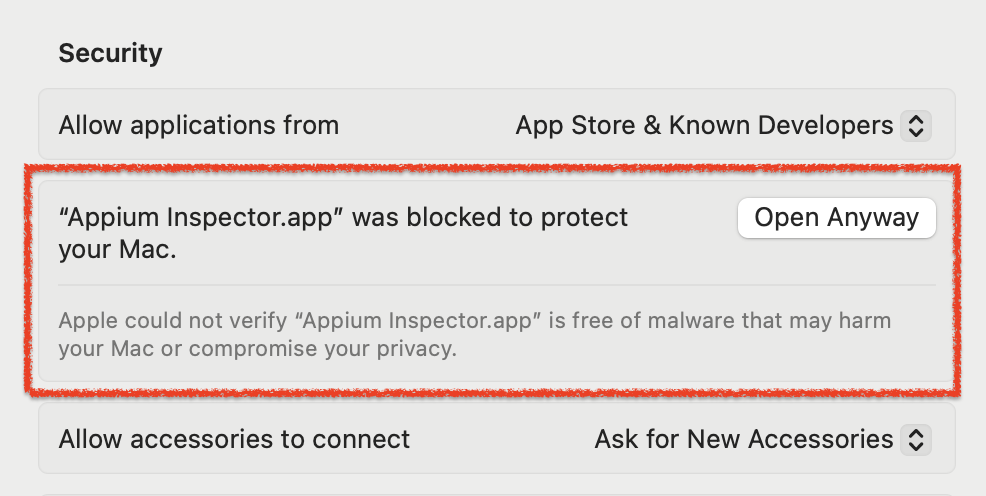
4. A new prompt Open “Appium Inspector.app”? will appear. Click on Open Anyway button again. You might be prompted to enter your admin password to confirm this action
5. With this, Appium Inspector will get opened on your device
Appium Inspector Online (Appium Inspector Web)
Instead of downloading and installing a standard desktop Appium Inspector, you also have an option to use a web based version of Appium Inspector. You can access the Web application on your browser using this link – https://inspector.appiumpro.com. Just note that you will need to enable CORS to use Appium Inspector Web and connect it to an Appium server. We will cover this Web Application in more detail in later in our Appium Tutorial series.