
In this article, we will share the detailed steps on how you can download ChromeDriver – including the latest release (eg. ChromeDriver 147, 146, 145 or 144) as well as some previous versions as well. We’ll walk you through step-by-step instructions for Windows, macOS, and Linux, so you can download the correct driver for your operating system without any guesswork.
Before we get into the download steps, let’s quickly understand what ChromeDriver is and why it’s required when working with Selenium and automated browser testing.

Note: The current stable ChromeDriver version supports the latest Google Chrome browser. This article is updated regularly to reflect new ChromeDriver.exe releases.
What is ChromeDriver?
Basically, ChromeDriver is a standalone server which implements the W3C WebDriver standards. WebDriver is an open-source tool designed to automate the testing of web applications across various browsers. ChromeDriver basically extends WebDriver and allows you to perform automation testing on Chrome browser.
For example, you know that Selenium is a tool that can interact with browsers to automate/test your web applications. So you can download & setup ChromeDriver for Selenium and then use it to open your web application on Chrome and interact with webpage elements like buttons, links, text boxes etc.
Like Chrome Driver, are there more standalone servers for other browsers as well?
Yes. Just like chrome driver, there are multiple other standalone servers as well. Some popular ones are GeckoDriver for Firefox, EdgeDriver for Microsoft Edge, SafariDriver for Safari browser and so on.
You will need to use these drivers when you want to run your automation scripts on their corresponding browsers. However, Chrome is the most widely used browser and has the highest market share in the world. Hence it makes more sense to use ChromeDriver to automate your web browser test cases.
Check Your Chrome Browser Version (Required)
Before downloading ChromeDriver, you must know which version of Google Chrome is installed on your machine. ChromeDriver is version-specific, meaning ChromeDriver must match the major version of your Chrome browser. For example, if your Chrome Browser is version 144, then you need to download and use ChromeDriver 144. Similarly if your Chrome Browser is version 145 or 146, then ChromeDriver 145 or 146 needs to be downloaded.
Windows: How to check Chrome Version
a) Open Google Chrome
b) Click the three-dot menu (⋮) in the top-right corner
c) Select Help → About Google Chrome
A new tab will open showing the installed version of Chrome
Mac: How to check Chrome Version
a) Open Google Chrome
b) Click Chrome in the top menu bar
c) Select About Google Chrome
A new tab will open showing the installed version of Chrome
Note: Chrome will automatically check for updates on this screen. If a newer version exists, Chrome may update and restart. If this happens, then repeat the same steps again to find the correct version of Chrome. Note down the major version as well as the platform. For example, from the below image you can see that the major version is 145 and platform is arm64. Now we need to download ChromeDriver matching this version and platform.

Steps to download ChromeDriver
1. Open Chrome for Testing availability page – https://googlechromelabs.github.io/chrome-for-testing/
2. On this page, you will see different versions of Stable, Dev, Beta and Canary releases
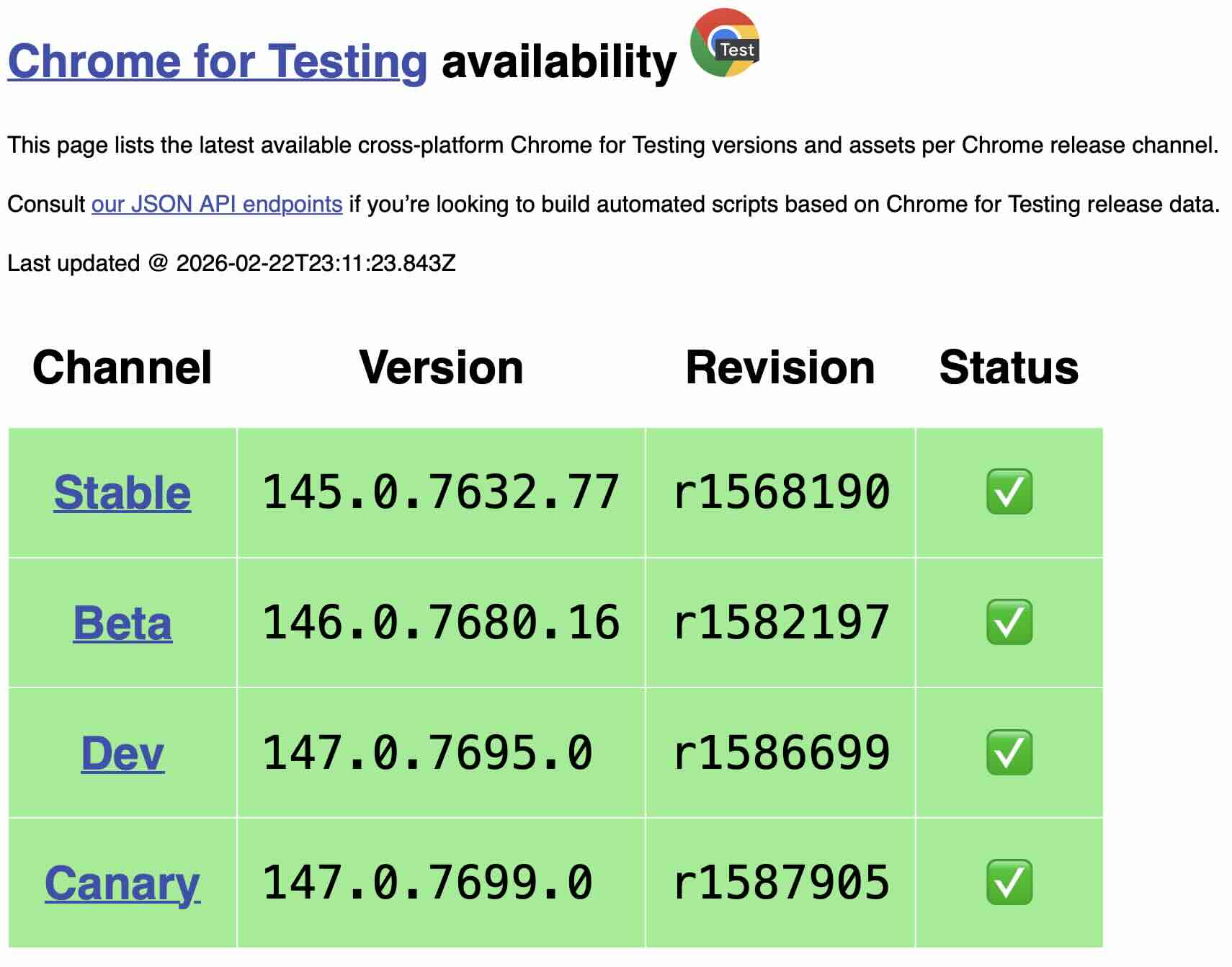
3. Check if the version number mentioned against Stable channel is the same as the Chrome Browser version installed on your machine (In our example, Stable channel version is 145 and this is same the Chrome Browser version that we have as well)
4. Go to Stable channel section and look for ChromeDriver entry where the platform matches your Chrome browser’s platform (Again, from our example, we need to look at the entry which has platform as Mac-arm64)
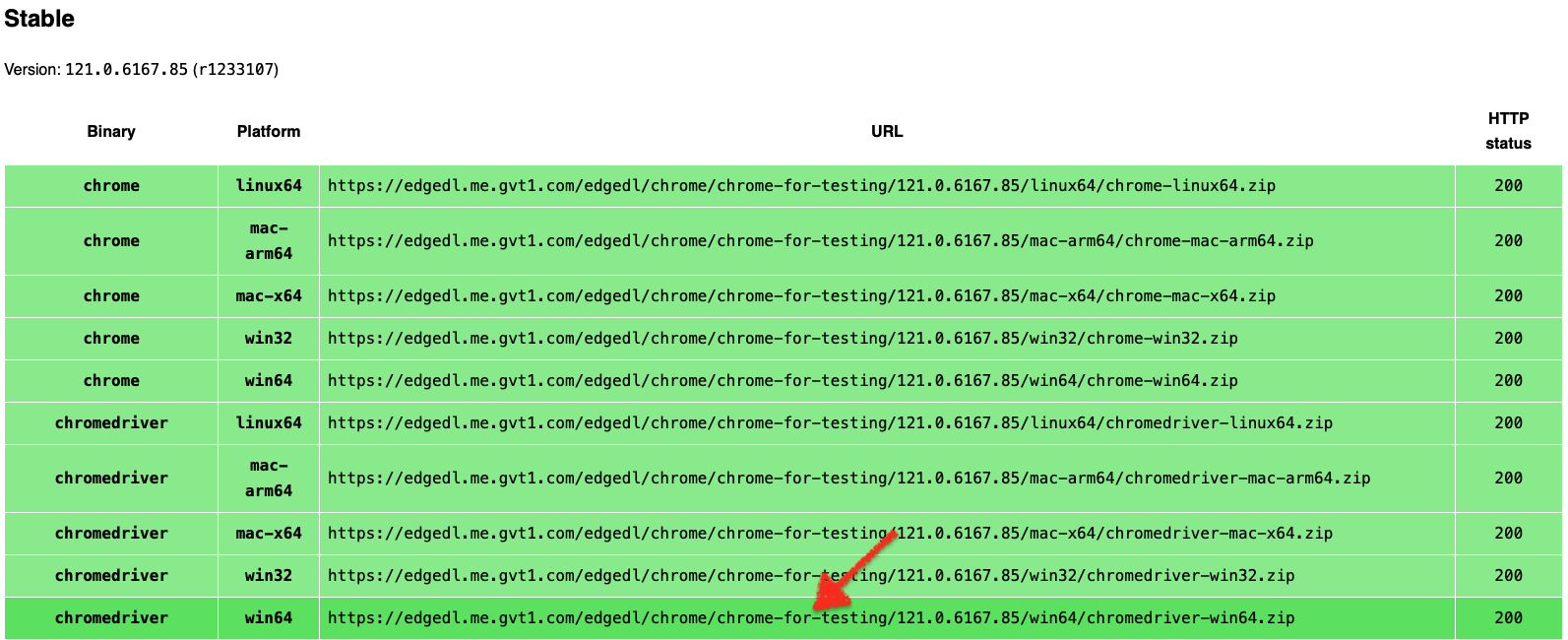
4. Copy the URL and open it a new tab, chromedriver zip file will get downloaded on your machine.
5. Once you download the zip file, unzip it to retrieve chromedriver.exe or executable file
How to download previous versions of ChromeDriver
Now, what if the version of Chrome on your browser doesn’t match the Stable channel’s version? For example, in our scenario, Stable channel has version 145 / 144 or 143. But what if Chrome Browser installed on our machine is version 142 or 141, and suppose that we don’t want to update Chrome to the latest version?
So in this case, you would need to download older version of ChromeDriver (like ChromeDriver 142, or ChromeDriver 141 etc) to match your browser version. Follow the steps given below to download these older versions of ChromeDriver.exe –
1. Open a new browser tab and then open known good versions with downloads url – https://googlechromelabs.github.io/chrome-for-testing/known-good-versions-with-downloads.json
This JSON file contains all the versions of ChromeDriver starting from 113. It includes the download link for all the platforms as well such as ChromeDriver 64-bit exe, ChromeDriver 32-bit exe, ChromeDriver Linux64, ChromeDriver Mac Arm64 and x64
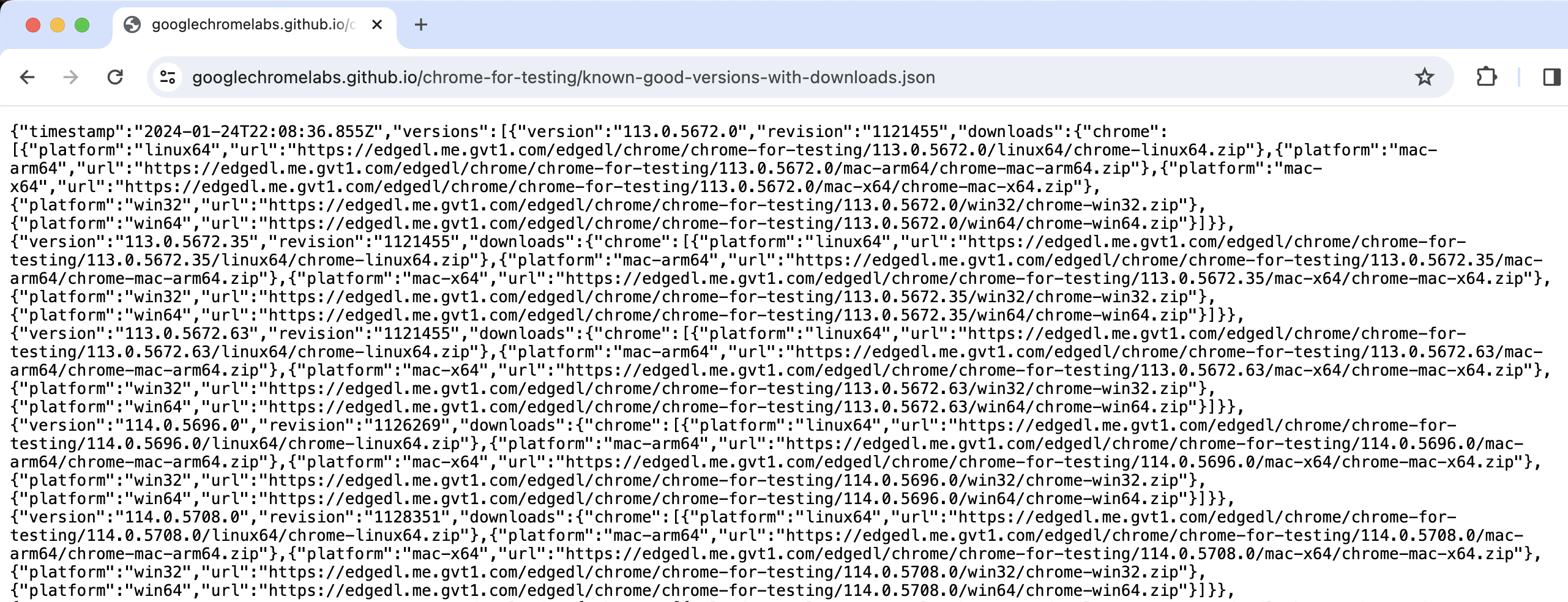
2. Now suppose you want to download ChromeDriver 141. To do this, search for “141.” in the JSON file. In you know the exact version, then look for that one. Else you can scroll down to find the last search results with “141.” and then look for url against the platform you are after like win32, win64 etc. As per our example, we will look for arm64

3. Copy this url. Open it in a new tab. This ChromeDriver zip will now be downloaded on your machine.
Steps to download ChromeDriver (version 114 or below)
If you want to download more older versions (like version 114 or below), then follow the steps given below –
1. Open ChromeDriver downloads page – https://chromedriver.storage.googleapis.com/index.html
2. This page provides the older ChromeDriver binaries

3. Scroll down and click on the version you want to download. Assuming you clicked on the link for ChromeDriver 114.0.5735.90, you will be navigated to ChromeDriver download page which contains ChromeDriver for Mac, Windows and Linux operating systems.
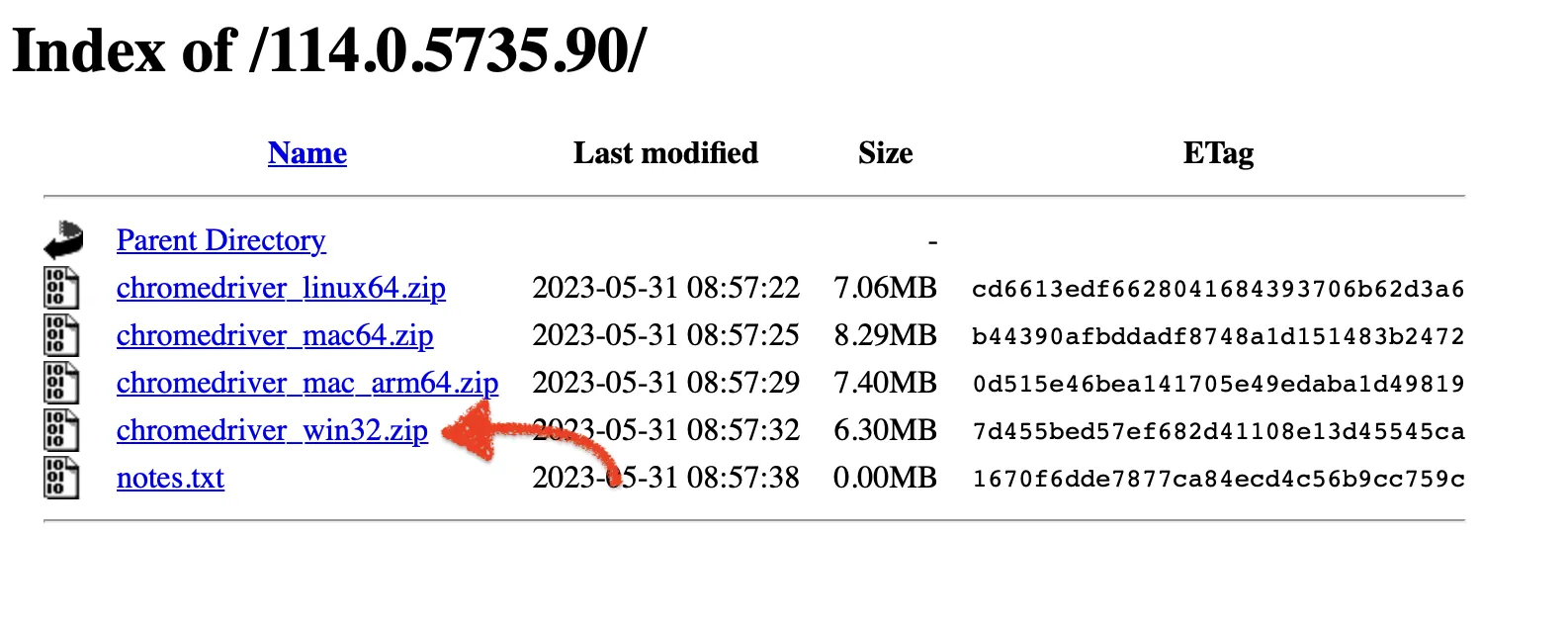
5. Click on chromedriver_win32.zip to download ChromeDriver for Windows
6. Once you download the zip file, unzip it to retrieve chromedriver.exe
With this, we complete the download process for ChromeDriver. Are you planning to use ChromeDriver with Selenium?
Click here to follow our latest and most upto Selenium Webdriver Tutorial Guide
[…] following our Selenium Tutorial series from the beginning, you would recollect that we have already downloaded Chrome Driver. Refer back to that article and copy the location where you have saved […]